
Beyond the PDF: How to Convert Images Into an Editable Presentation
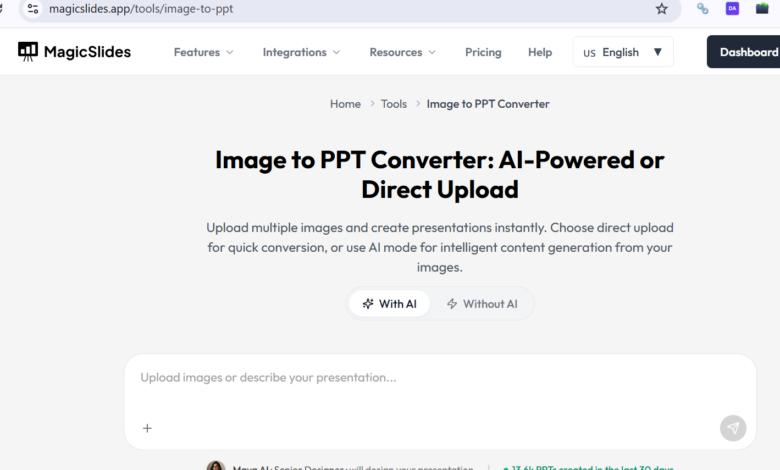
When dealing with a collection of image files—such as project screenshots, scanned documents, design mockups, or visual research. The most common fallback is to convert them into a static PDF. While a PDF is useful for locking a document in place for printing. Tt creates a rigid barrier when you need to present those images, add contextual commentary, or adjust layout hierarchies for a meeting.
Instead of turning your visual assets into a rigid, multi-page document. A more efficient modern workflow involves converting your raw graphics directly into an interactive slideshow. This allows you to retain total formatting control, add live speaker notes, and present your ideas dynamically.
The Limitations of Static File Stacking
Many professionals default to an image-to-PDF pipeline simply out of habit. However, this workflow introduces several hidden friction points:
-
Zero Layout Flexibility – Once your images are flattened into a PDF, you cannot easily move an image to the side to insert an explanatory text box or bulleted list.
-
Fixed Aspect Ratios – Image files come in all shapes and sizes. Stacking them into a vertical PDF often leaves massive, awkward white spaces at the top and bottom of your landscape-oriented assets.
-
Presentational Friction –Scrolling vertically through a PDF during an active team sync or client pitch feels clunky compared to clicking through clean, horizontally aligned presentation slides.
Embracing an Automated Visual Workflow
You do not need to spend your afternoon manually creating blank slides and dragging files into a slideshow program one by one. The manual process of positioning borders, adjusting image heights, and fixing center alignments can consume hours of tedious effort.
By shifting your strategy to a dedicated Image to PPT Converter. you can instantly turn your folder of image files into a cohesive, structured presentation template. The automated engine handles the spacing, scales your graphics safely to a modern landscape layout. Also, organizes your assets into sequential slides automatically.
Why Slide Conversions Maximize Visual Value
-
Contextual Layouts – Unlike a PDF, a presentation slide allows you to sit text descriptions comfortably alongside an image, ensuring your audience has the exact data they need to understand your visual point.
-
Standardized Horizons – The conversion system maps your uploaded images into a standard 16:9 widescreen canvas, ensuring uniformity across your entire visual sequence.
-
Editable Foundation – The output file is a native presentation format. This means you can drop in your company’s logo, change background colors, or add custom animations whenever your goals shift.
How to Convert Your Images in 3 Steps
-
Step 1: Batch Upload Your Graphics – Head over to the web-based tool and upload your JPEGs, PNGs, or web screenshots directly into the conversion workspace.
-
Step 2: Apply Design Themes – Select a matching color palette or professional layout style that suits the tone of your visual pitch.
-
Step 3: Download Your PPTX File – Let the system run its calculations. Within 2 mins, you will receive a clean, editable presentation file ready for Google Slides or Microsoft PowerPoint.
Conclusion
Your visual data shouldn’t be trapped inside an uneditable, static document container. Elevating your files from flat images into a functional presentation deck. It can save you hours of manual layout adjustments. And ensures you are always prepared to pitch your ideas with absolute clarity.


